
Quick links
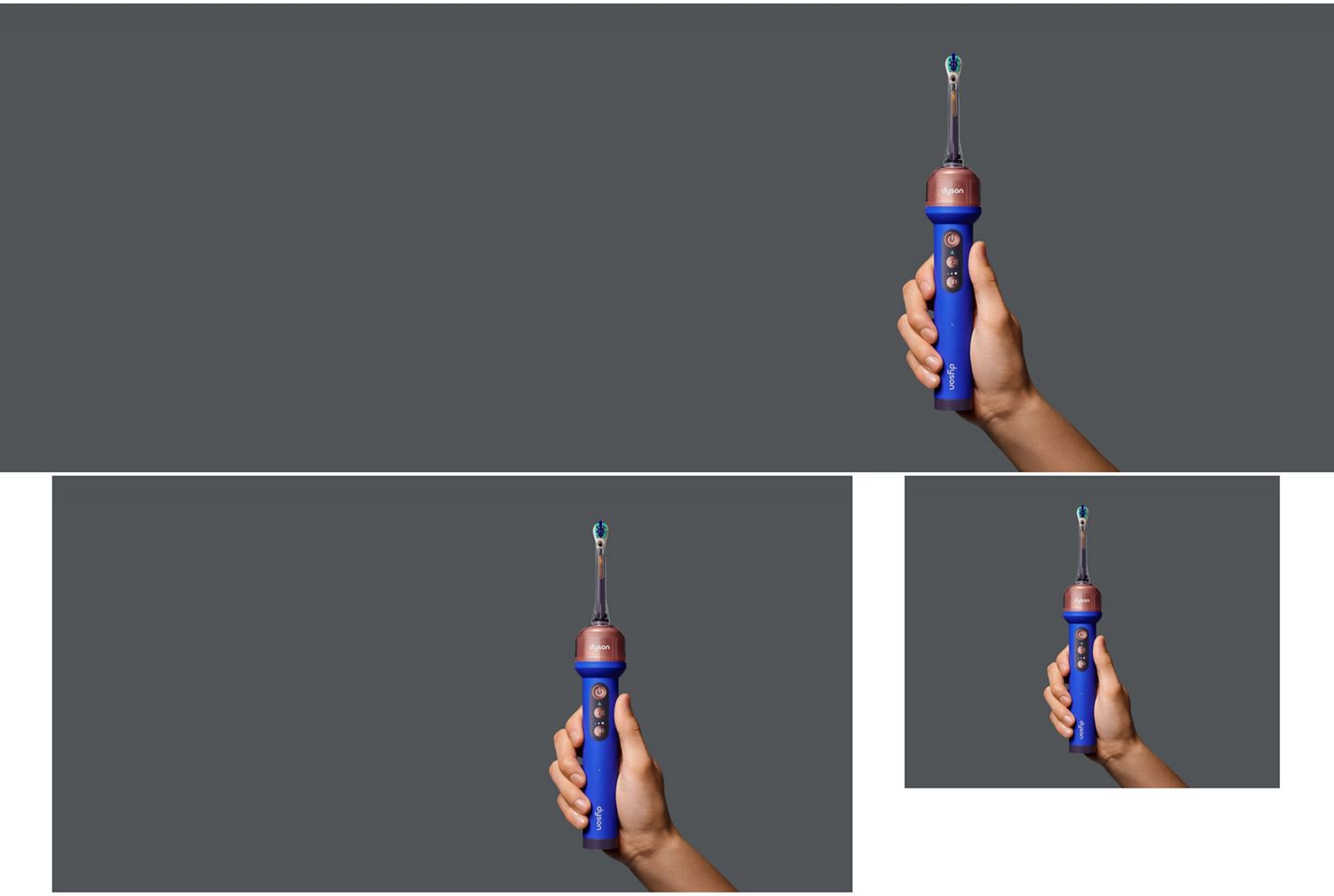
Tips for first-time users
-
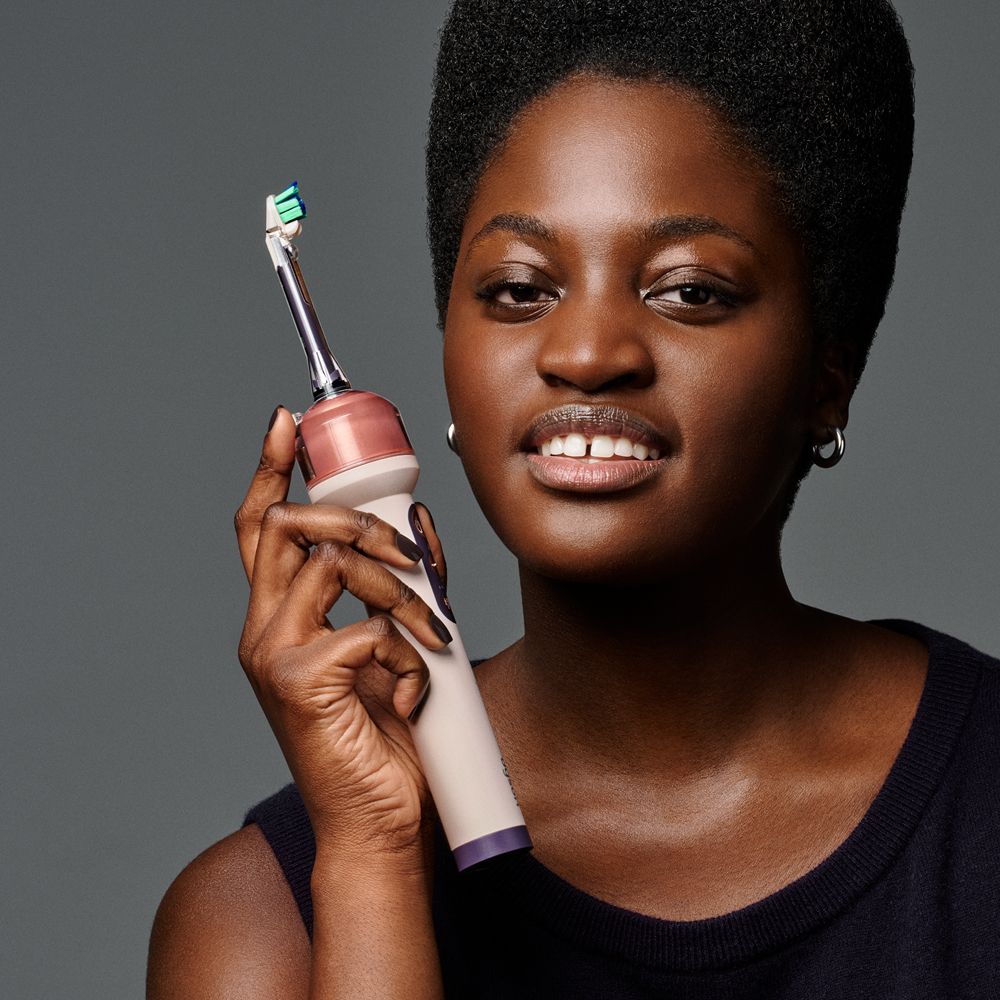
Hold the brush horizontally
While the Anti-gravity tank enables interrupted flossing at any angle, the jet works best when the toothbrush is horizontal to the teeth and gumline.
-
Brush using gentle, controlled motions
Use small, oval back-and-forth movements. Try to avoid applying too much pressure or scrubbing back and forth – the device’s haptics alert you if your technique needs work.
-
Expect some mess at first
A bit of splatter is normal when in automatic brushing and flossing mode. To reduce mess, try closing your lips while using the device, and make sure to spit regularly.
-
Maintain a consistent technique
A good, steady technique helps prevent plaque buildup. Brushing twice a day for at least two minutes is strongly recommended, along with flossing at least once daily.
Frequently asked questions
If your Dyson CameraJet™ toothbrush will not power on, it may be due to an outdated software version. This can usually be resolved by updating your software in the MyDyson™ app.
To do this, follow these steps:
1. Put the product on charge for 30 minutes.
2. Connect to the MyDyson™ app and await product software update. If this fails, move to step 3.
3. Press and hold the Power button for 9 seconds.
4. Release the button and wait for at least 3 seconds.
5. Reconnect the charger.
6. Reattempt connection to the app and await product software update.
Your Dyson CameraJet™ toothbrush should now begin charging normally. To help prevent this issue from occurring again, ensure your toothbrush is updated to the latest version when an update is available.
If the issue persists after following these steps, contact Dyson support.
You can charge your Dyson CameraJet™ by placing it onto the Refill dock when the dock is connected to power. Alternatively, you can charge the device using the USB-C to Pogo-pin cable.
It takes approximately 8 hours to fully charge your Dyson CameraJet™. A single charge provides enough battery for up to 14 complete cleans in automatic brushing and flossing mode.
To attach the brush head, slide it onto the handle and click into place. There should be an audible “click” sound when the brush head is attached correctly.
We recommend using Dyson’s Non-foaming toothpaste and Low-foaming mouth rinse, which have been scientifically engineered for accurate gap detection and targeted flossing with Dyson CameraJet™.
If you prefer to use other toothpaste and mouth rinse, we recommend pairing your Dyson CameraJet™ with a non-foaming gel toothpaste (usually labelled SLS-free) and a clear mouthwash.
When you first use Dyson CameraJet™, a bit of splatter is normal. The toothbrush is jetting away plaque between teeth, which can get a little messy. You’ll adjust in no time.
-
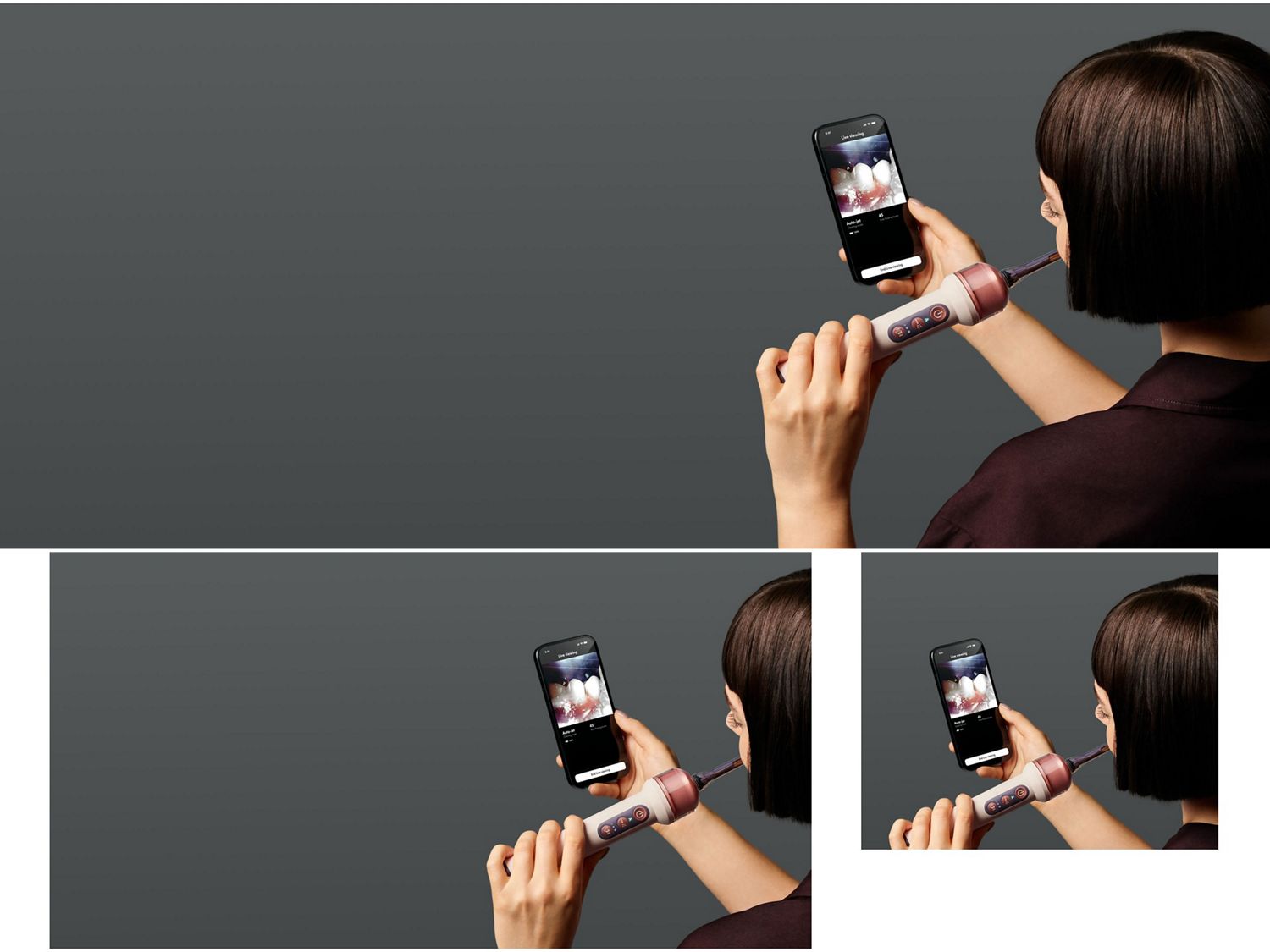
Live cleaning footage
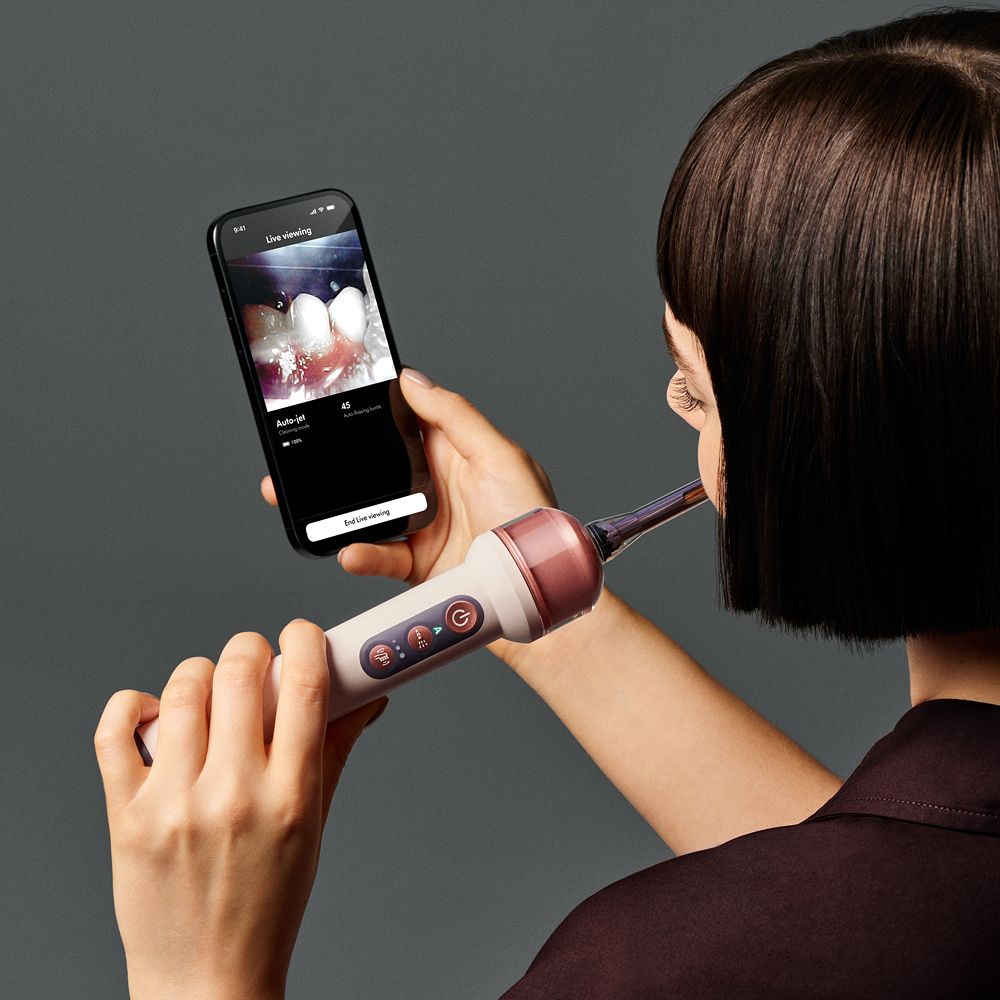
Watch live cleaning footage as you brush, or use the intraoral camera for teeth inspection.
-
Guided cleaning
Real-time guidance shows you the right brushing and flossing techniques to use as you clean.
-
Cleaning insights and trends
Clean duration and coverage mapping track whether you’re spending time in the right zones.
Frequently asked questions
To pair your toothbrush with the app:
- Power on your toothbrush to enable Bluetooth.
- Hold your mobile device next to the toothbrush.
- Press the Brush intensity button when prompted to activate the pairing process.
- Continue to set up your Wi-Fi and complete the pairing process.
No, it's completely optional to use the MyDyson™ app with your Dyson CameraJet™. However, if you don't connect to the MyDyson™ app, you will not have access to app-specific features like live viewing, guided cleaning and clean session insights.
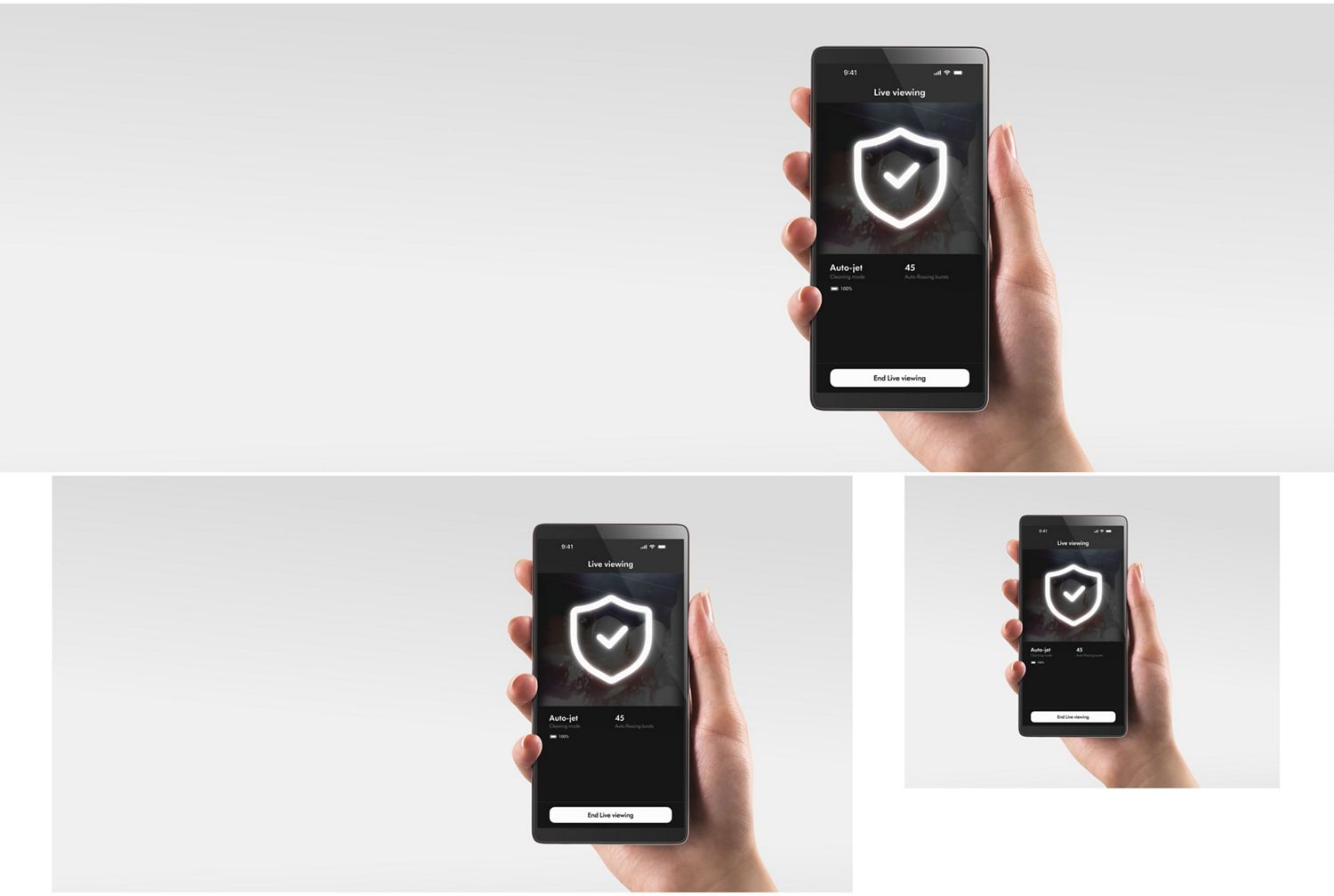
No. Live viewing streams images directly to your MyDyson™ app in real time when you choose to activate it. These images are not stored by Dyson, in the app or uploaded to the cloud. Dyson and third parties do not have access to this live view.
-
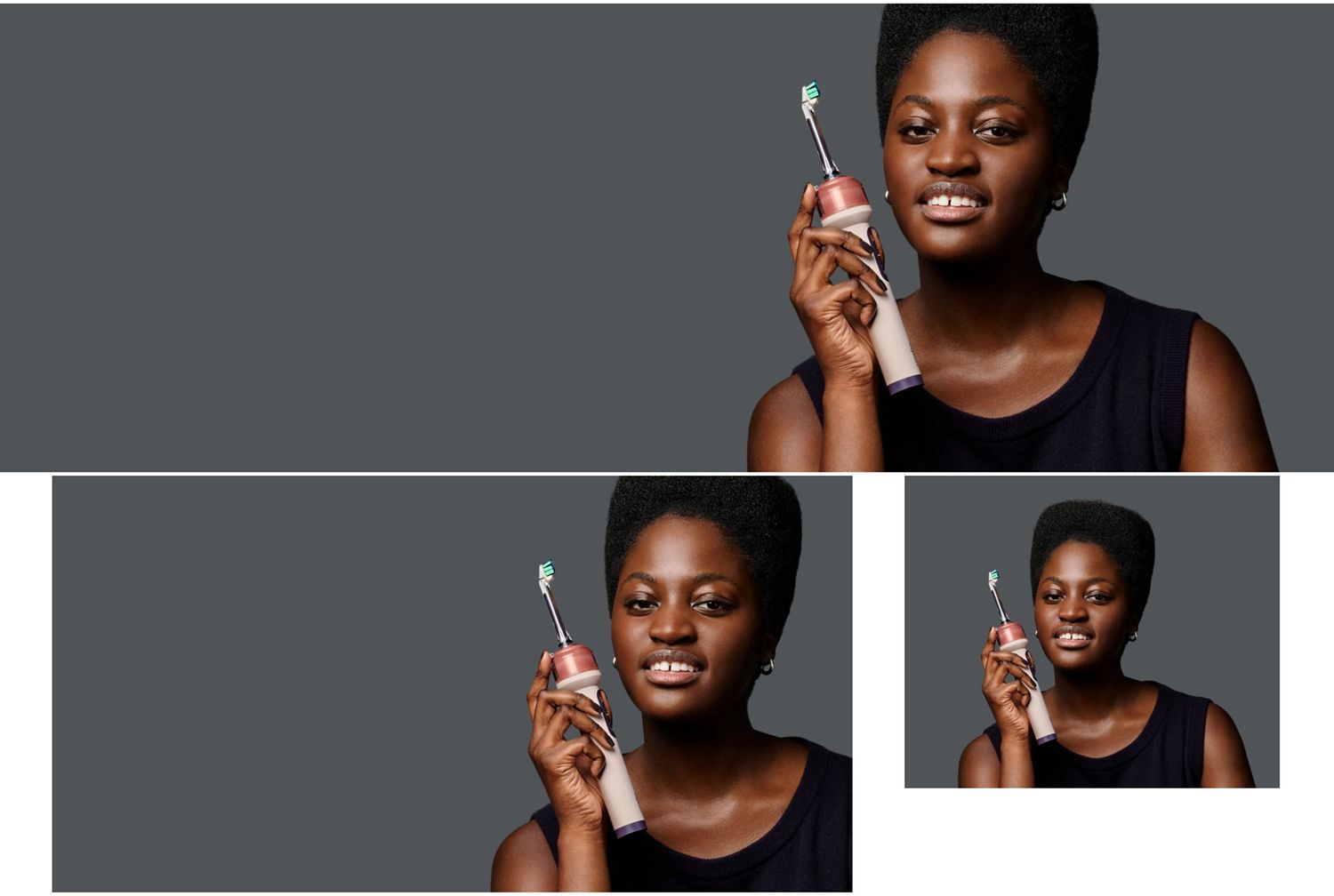
Brushing effectively
A good systematic brushing technique ensures effective plaque removal and healthier teeth, avoiding scrubbing or excessive pressure.
-
Achieving good flossing coverage
Gaps between teeth are highly prone to plaque buildup. Good flossing coverage helps remove plaque in areas a toothbrush alone cannot access.
-
Changing cleaning modes
The Dyson CameraJet™ toothbrush has three cleaning modes. You can automatically brush and precision-floss at the same time, or brush and floss separately.
-
Understanding haptics
The Dyson CameraJet™ toothbrush uses different vibrations to alert you when to change section, or if you’re applying too much pressure or scrubbing too aggressively.
Frequently asked questions
Dentists recommend brushing your teeth for at least two minutes, twice a day. When using CameraJet™ in automatic brushing and flossing mode, to ensure effective coverage we recommend brushing for three minutes during each session.
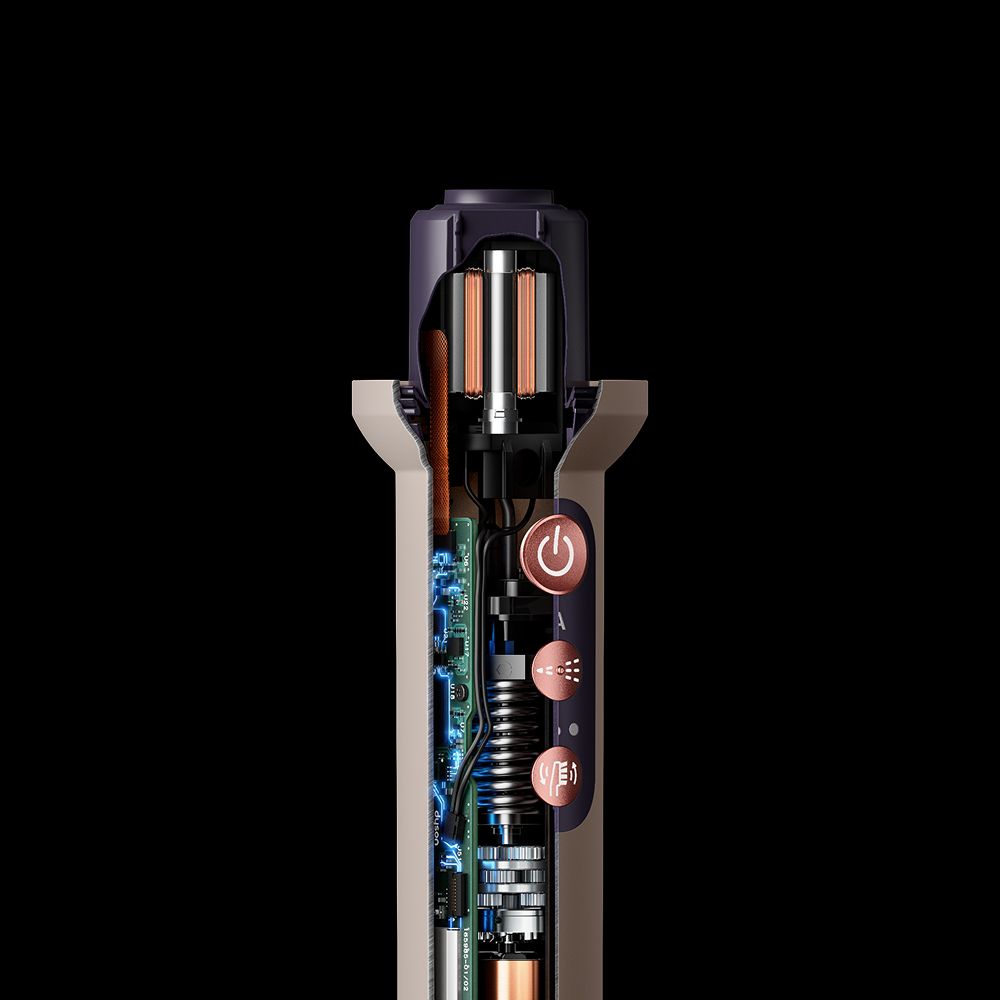
To change the cleaning mode on your Dyson CameraJet™, press the Jet button. The LED letter ‘A’ will be illuminated white when Auto-jet mode is active. When Auto-jet mode is turned off, the LED will not be illuminated.
To change the brushing intensity on your Dyson CameraJet™, press the Brush intensity button. One LED will be illuminated white when the brush is in Gentle brushing mode, two when in Variable mode, and three when in Deep clean mode.
When your Dyson CameraJet™ is charging, press both the Jet and Brush intensity buttons together until the indicators illuminate. When both alerts are enabled, the LED letter ‘A’ and the three indicators below will illuminate green.
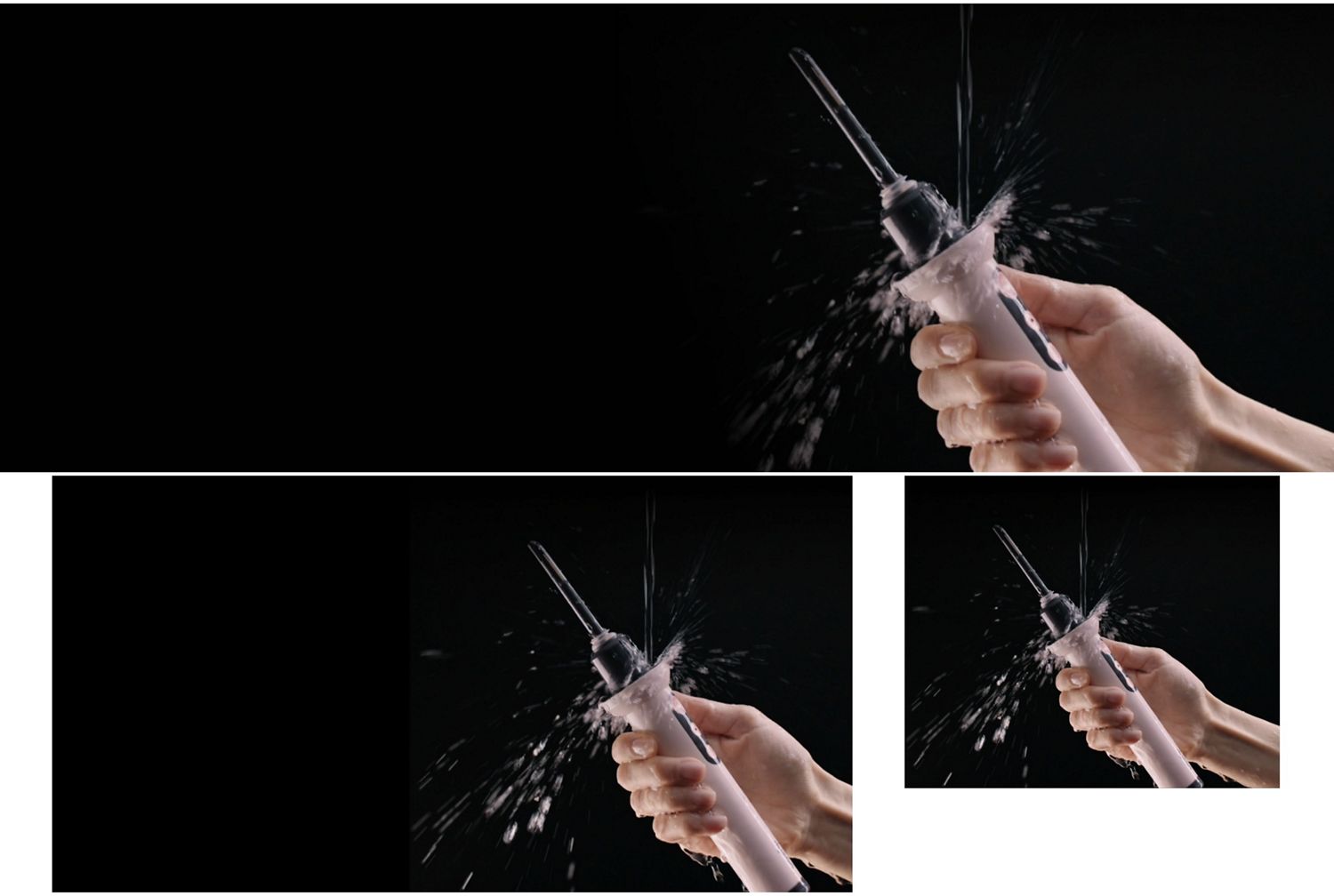
-
Cleaning your toothbrush daily
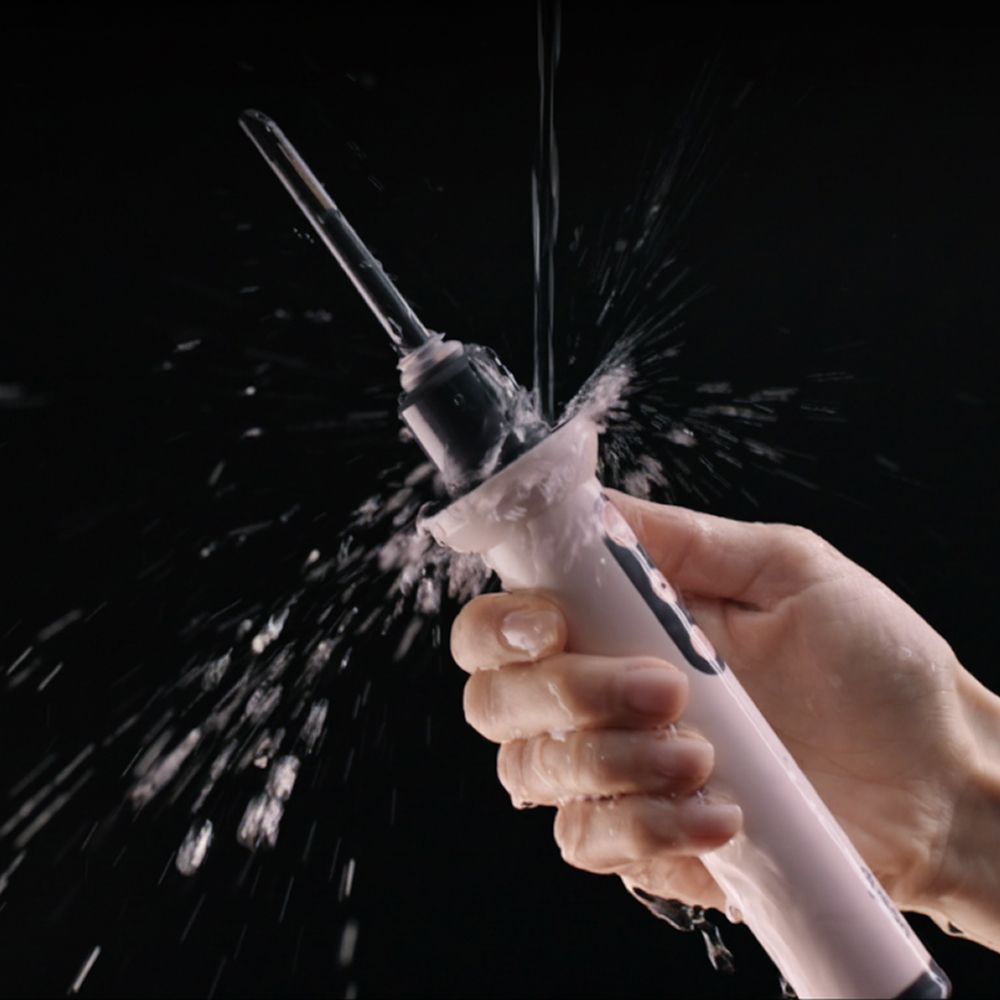
You should rinse the device and tank daily for good hygiene and optimal cleaning performance.
-
Cleaning your toothbrush weekly
On top of daily rinsing, we recommend more thorough weekly cleans, using boiling water to clean the tank.
-
Cleaning your toothbrush monthly
If you live in a hard water area, we recommend descaling monthly to remove any potential hard water deposit.
-
Cleaning the Refill dock
You should clean your toothbrush’s Refill dock weekly to ensure a clean supply of liquid.
Frequently asked questions
We recommend thoroughly cleaning your Dyson CameraJet™ at least once weekly, but it’s a good idea to rinse the brush head, tank and device in water after every use. If you live in a hard water area, we also recommend descaling the tank once a month.
You can find more cleaning and maintenance tips in the MyDyson™ app.
Remove the tank from the device, rinse it in water and leave to air dry. For a more thorough weekly clean, carefully submerge the tank in boiling water for at least 30 seconds. If you live in a hard water area and are using tap water in the device, descale the tank monthly by submerging it in vinegar.
To clean the toothbrush’s camera, remove the brush head and gently wipe the nozzle and camera with a clean cloth.
-
Addressing Auto-jet issues
The Auto-jet setting may be disabled for a number of reasons, including an empty tank or a blocked camera.
-
Performing a factory reset
If you need to perform a factory reset of your Dyson CameraJet™ toothbrush, follow these simple steps.
-
Replacing the battery
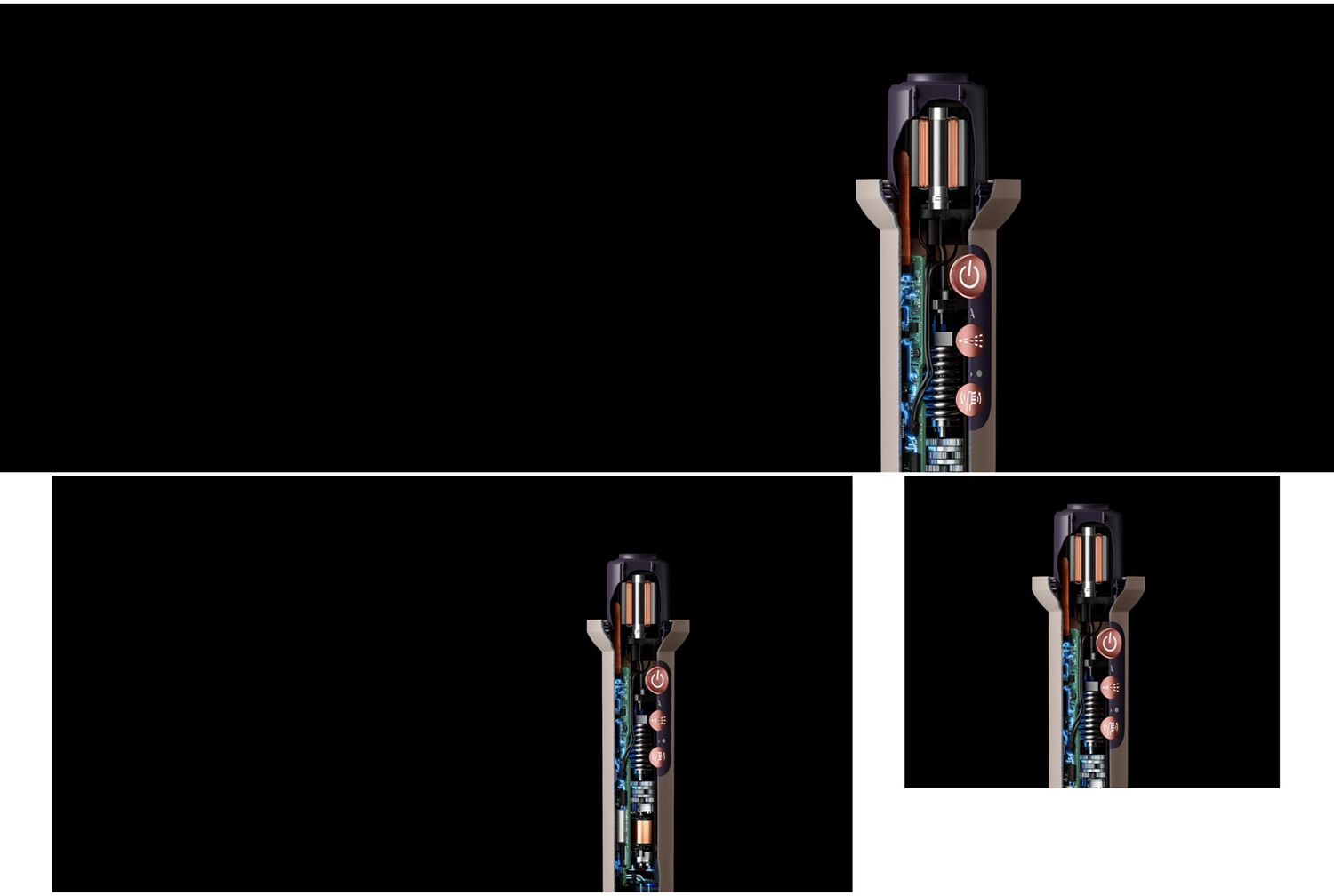
The click-in lithium-ion battery is easy to replace and can be purchased directly from Dyson.
Frequently asked questions
If the LED letter ‘A’ is illuminated solid orange, the tank is empty and you should refill it before cleaning in Auto-jet mode.
If the camera’s vision is blocked, the LED letter ‘A’ will blink orange. You should check for dirt or scratches covering the camera.
If there’s an issue with the battery, the LED letter ‘A’ will blink red. You may need to replace the battery.
In the event of a camera issue, the LED letter ‘A’ will be illuminated solid red. If the indicator remains after 15 minutes, you should contact Dyson Support.
When the three LED lights on the Brushing intensity dial blink orange, the brush head is worn out and should be replaced with a new one. You can also monitor the brush head's remaining life in the MyDyson™ app.
When the battery needs to be recharged, the circular LED will blink orange then pulse off. You should recharge the toothbrush by placing it onto the dock or connecting it to the USB-C to Pogo-pin cable.
Replacement parts
The Dyson CameraJet™ toothbrush only works properly with genuine Dyson spare parts and accessories.
-

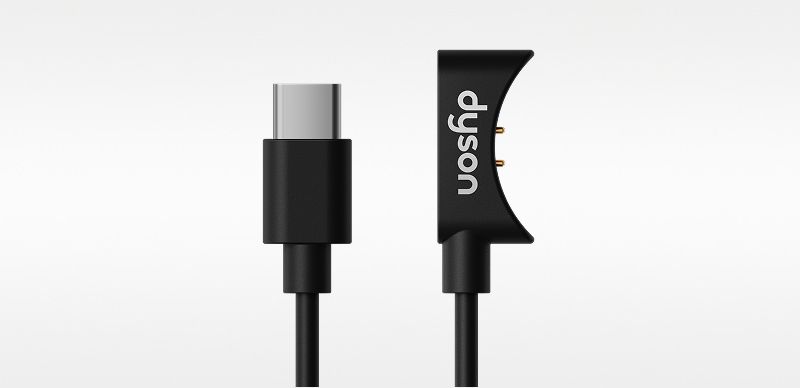
CameraJet™ USB-C to Pogo-pin cable
CameraJet™ USB-C to Pogo-pin cable
Part No. 975088-01
Waterproof magnetic cable
Out of stock.
€25.00
-
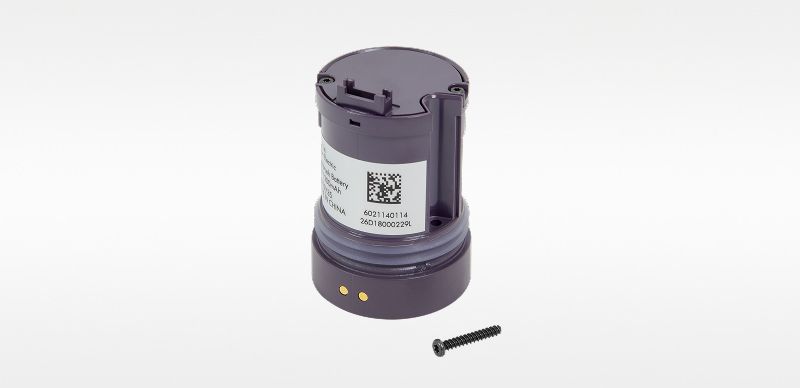
CameraJet™ Lithium-ion battery
CameraJet™ Lithium-ion battery
Part No. 975294-01
Swappable lithium-ion battery
Out of stock.
€65.00

Speak with a Dyson Expert
Our Experts are on hand to help answer any questions and guide you through the set-up process.
The Dyson guarantee
⁵ App functionality may vary per market. Requires internet connection/Wi-Fi and MyDyson™ app. Operating system and mobile device requirements for the MyDyson™ app can be found on the App Store or Google Play.