

Quick start guide: how-to videos
-
Your Nurovi™ Dry robot
-
Setting up your robot
-
Setting up your dock
-
Using the MyDyson™ app
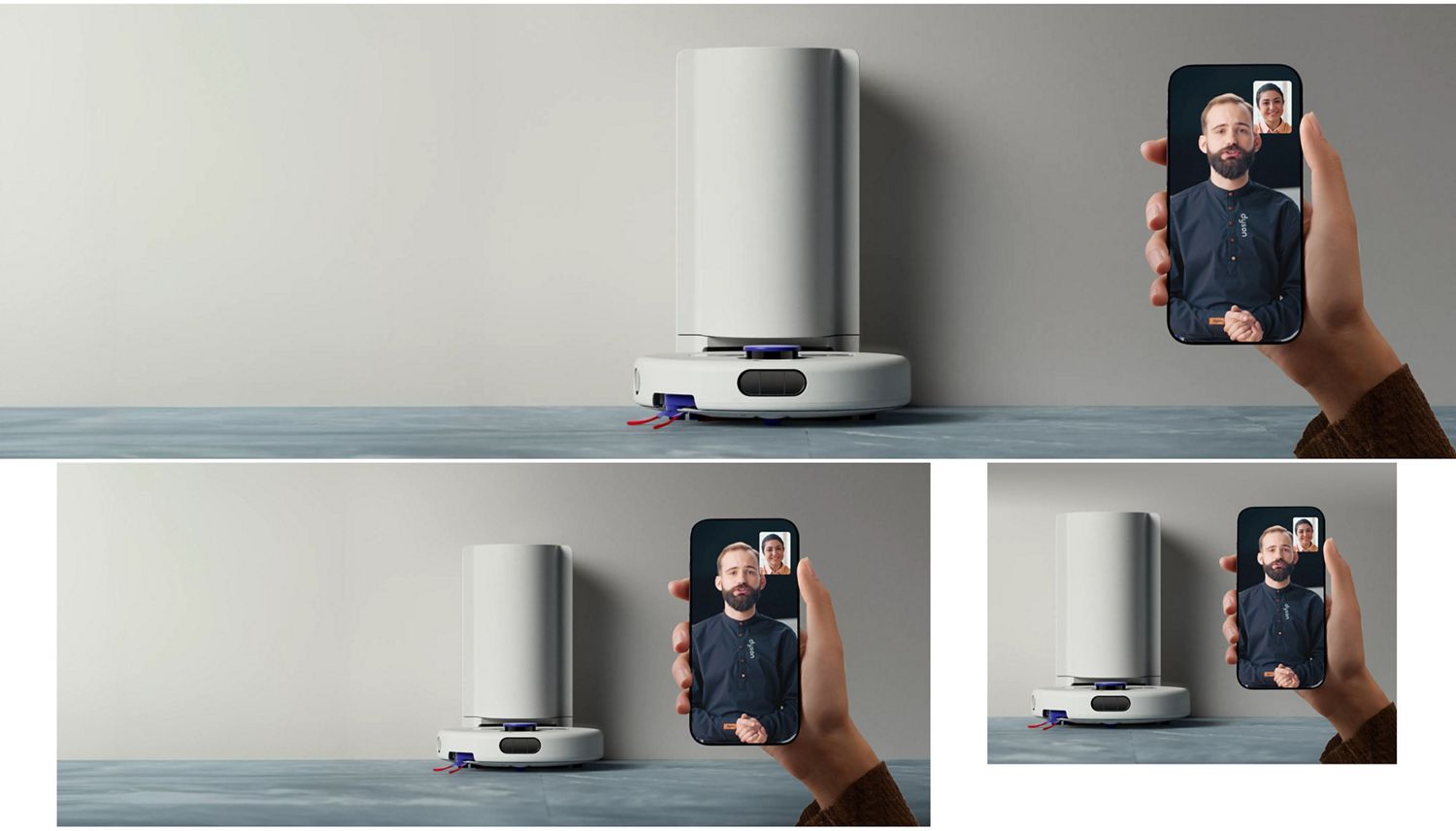
R1 Nurovi™ Dry robot: all how-to videos
-
Getting started
-
MyDyson™ app features
-
Cleaning your machine
-
Troubleshooting videos
-
Dock Issues
Getting started
When cleaning your robot, please don’t use a dishwasher, detergents, polishes or air fresheners as this may damage your machine.
-
Introducing your robot
This step-by-step guide covers dock set up; connecting your robot to the MyDyson™ app; and mapping your home before your first clean.
-
Setting up your dock
Before your first clean you will need to assemble the dock station, and choose the best location for it. (See the user guide for instructions.)
-
Setting up your robot
Once the dock is set up you should watch how to attach your robot's side sweeper, at which point your robot is ready for its first clean.
-
Connecting your robot
This video shows how to place your robot on the dock and add it to the app, so you can control, customise and monitor cleans from your phone.
-
Mapping your home
Your robot needs to map your home before it can navigate effectively. Clear any loose items like cables and small objects, and leave room doors open.
-
Starting a clean
Starting a clean on the app lets you choose which rooms or areas your robot cleans, and customise the cleaning behaviour for each one.
-
Cleaning multiple floors
This video shows you how to add and map a new level so that your robot can clean multiple levels of your home.
-
Post-cleaning maintenance
Emptying the dock’s dust bin after every clean helps your robot maintain cleaning performance. This video shows you how.
-
Maintenance support
Get help with maintenance and troubleshooting through the MyDyson™ app. If you need additional support you can also contact Dyson through the app.
MyDyson™ app features
Creating a map of your home with the MyDyson™ app lets your robot learn the layout, and gives you more control over how and where your robot cleans.
-
Create and manage your map
Once you’ve created a map, you can split, merge and name each room to reflect your home’s layout.
-
Customise your cleans
Clean individual rooms. Choose vacuum or wash, or both. Change hydration levels. And much more.
-
Live cleaning
Track your robot’s location and check its progress in real time in the app. You can even view it in 3D.
-
Troubleshooting
The MyDyson™ app will alert you if your robot encounters an issue, giving you a step-by-step fix.
-
Activity history
After every clean your robot will share its activity history in the app, so you can see where it’s cleaned.
-
Maintenance and spares
Use the app to monitor the condition of your robot. The app will alert you if replacements are needed.
Cleaning your machine
When cleaning your robot, please don’t use a dishwasher, detergents, polishes or air fresheners as this may damage your machine.
-
Routine cleaning maintenance
A quick maintenance check helps keep your robot working optimally.
-
Deep cleaning maintenance
Thoroughly cleaning your robot ensures longer lasting performance.
-
Cleaning the filters
Washing your filters at least once a month helps maintain optimum performance.
-
Cleaning the brush bar
We recommend checking your brush bar at least once a month.
-
Cleaning the side sweeper
We recommend checking your side sweeper for dirt at least once a month. This video shows you how.
-
Emptying and cleaning the dock bin
Help maintain your robot's performance by regularly emptying and cleaning the dock bin.
-
Cleaning the dock filter
Washing your filters at least once a month helps maintain optimum performance.
Troubleshooting videos
Use our videos below and in the MyDyson™ app to help guide you through issues your robot may encounter.
-
Brush bar lift stuck
Check the brush bar lift for any debris, which could be stopping it from moving.
-
Brush bar stuck
Check the brush bar for any debris, which could be stopping it from rotating.
-
Side sweeper stuck
Check the side sweeper for any debris, which could be stopping it from rotating.
-
Wheels stuck
Check that your robot's wheels are free from debris and can move smoothly.
-
Line laser blocked
Keep the line laser clean and unobstructed to help your robot navigate.
-
LiDAR blocked
Keep the LiDAR sensor clean and unobstructed to help your robot navigate.
-
Manual reboot button
Only use this if instructed by a Dyson expert, as this will force the robot to initiate a full reset.
-
Caster wheel stuck
Check that your robot's caster wheel is free from debris and can move smoothly.
-
Robot bin not fitted
Ensure the robot bin is correctly fitted and securely in place.
-
Collision sensor stuck
Check that the collision sensor can move freely and isn’t blocked by any debris.
-
Replacing the robot battery
Learn how to safely remove and replace your robot’s battery.
-
Drop sensor obstructed
Wipe your robot’s drop sensors to help it accurately detect drops.
Dock issues
These troubleshooting video guides below, and in the MyDyson™ app, help you maintain your docking station.
-
Removing the dock filter
Cleaning your dock filter regularly will help to maintain its performance.
-
Dock bin not fitted
Ensure the dock bin is correctly fitted and securely in place.
-
Emptying and replacing the dry bin assembly
This ensures your robot can continue cleaning your home without interruptions.
Can't find your issue?
Genuine parts and accessories for your product
-
Batteries, chargers & docks
Automatically empties and charges your vacuum. So there’s no need to touch the dust.